We’ve made it to the halfway point of 2026. Both SOLIDWORKS Design and the 3DEXPERIENCE Platform have received some amazing new tools and features in the last 6 months! Here are our top 5 new features and updates of 2026. This article also highlights some of the AI integration and future enhancements coming later this year.
5: New Installation Manager for Multiple Version Support
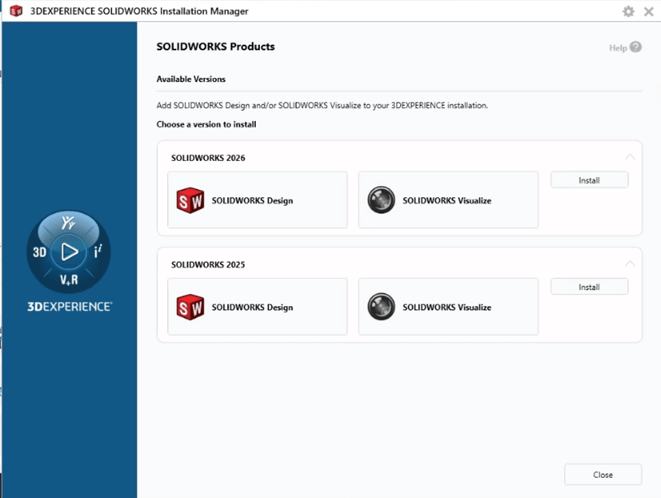
With SOLIDWORKS Design licenses, purchased as user-assigned roles from the 3DEXPERIENCE Platform, you now have the option of installing an older version of SOLIDWORKS Design that is still compatible with the 3DEXPERIENCE Platform. This option started as an enhancement for the 2026GA (General Availability) release in November of 2025. This gives you the choice to update SOLIDWORKS Design and the 3DEXPERIENCE Connectors with each update release or allow users to update the necessary 3DEXPERIENCE Components needed without touching the SOLIDWORKS Design installation. This gave users the ability to decide if they want to always be on the latest release of SOLIDWORKS Design, or if they want to stay on a particular version for a bit. Some reasons you may want to stay with the current installations are:
- Needing to stay on the same release as other users you work with, both locally and outside of your company.
- Saving time with each update: Only updating the 3DEXPERIENCE Components, rather than all SOLIDWORKS Design, is a much faster process. This reduces downtime provided users are comfortable with the current tools available in their installation.
Want to learn how to get this setup for your SOLIDWORKS Design installation? Check out this step-by-step guide on the different installation methods for SOLIDWORKS Design user-based licenses.
4: the Content Explorer App (For SOLIDWORKS Design users on the 3DEXPERIENCE Platform).
For the past several years, SOLIDWORKS Design users, utilizing the 3DEXPERIENCE Platform for data management, have been working in and out of the ENOVIA Web App called Bookmark Editor to save their data in folder-like structures, making it easier and faster to find CAD data saved to the cloud platform without the risk of duplication. Since then, we have seen many updates and enhancements for the application, fulfilling more user needs than ever before.
Now, we have a new Web App that is built off the same basic framework of Bookmark Editor, and this one is called Content Explorer. Content explorer was developed as a web application that can help SOLIDWORKS users who have more familiarity with the windows save environment than they do with Bookmarks and Collaborative Spaces. This new app simply takes the functionality you can get out of the Bookmark Editor, and makes it feel familiar for these SOLIDWORKS users. The same basic premise applies; your data is still stored in collaborative spaces, then broken out into bookmark folders as needed.
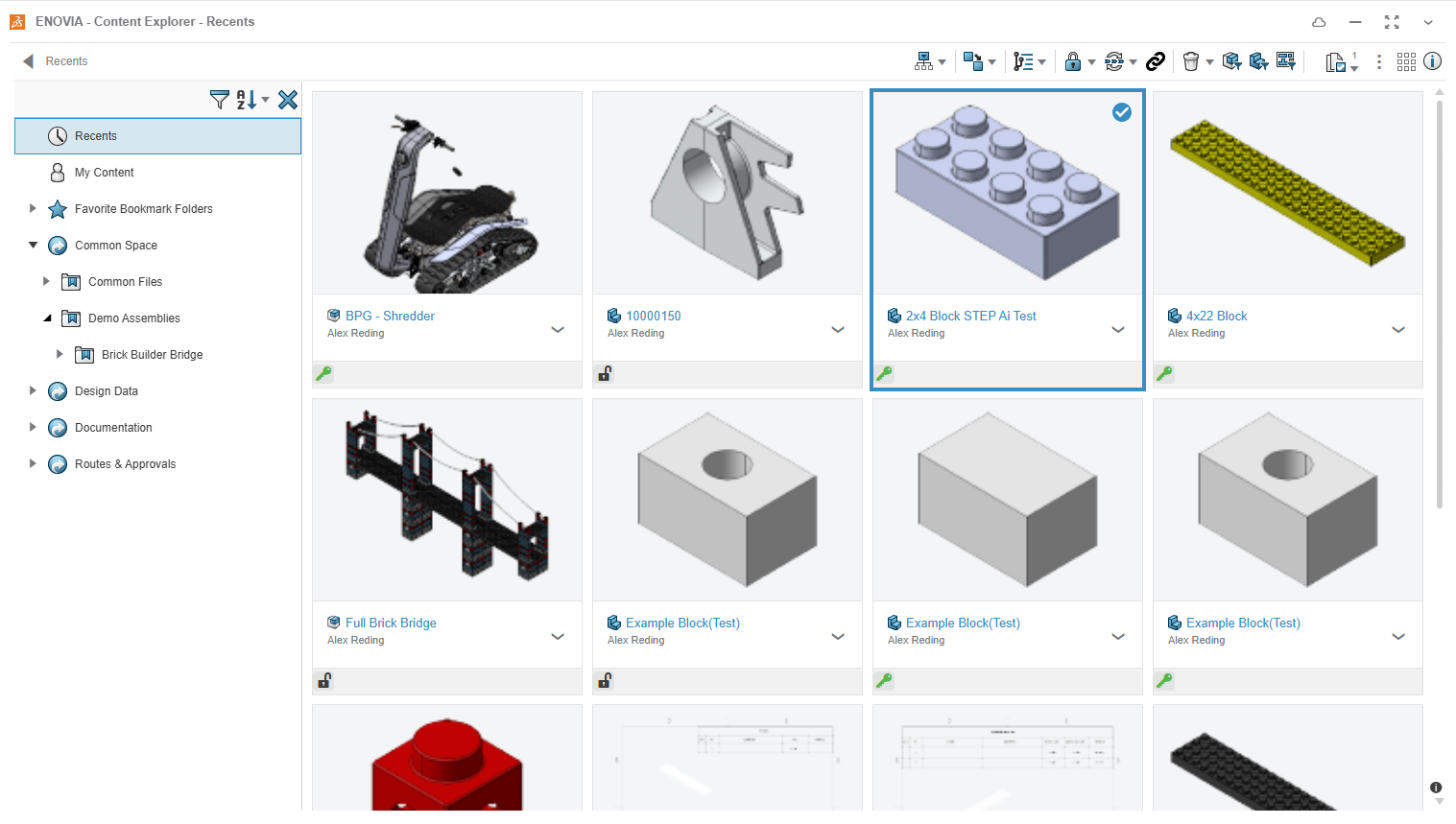
The difference here is how the data is delivered. It looks much more like a Windows File Explorer window. Your favorites bookmark folders are at the top of the left panel. Then each Collaborative Space the user has access to is listed below. By clicking on one of the spaces, you will see the Bookmark folders that live within them and any data in those spaces that does not belong to a bookmark. This allows the application to feel and look more like shared network drives. At the same time, it keeps all the necessary information and relationships connected in the background.
Another great enhancement added to the Content Explorer is the ability to filter parts, assemblies, and drawings directly from the top toolbar of this app. No other cloud application can easily and quickly filter by parts and assemblies. The 3DEXPERIENCE Platform sees both options as Physical Products instead.
Lastly, the Content Explorer app is now out of the Beta period. It is completely available to anyone with a SOLIDWORKS Design role on the 3DEXPERIENCE Platform. In addition, this app can be set as the default application used in your cloud dashboards and inside of SOLIDWORKS. Simply go to File-Open Menu to open any data stored in the 3DEXPERIENCE Platform.
3: Selective Loading for Assemblies
Large assemblies with excess hardware, components, and subassemblies can really slow down your PC's performance when making major edits to CAD data. That’s where the Selective Loading for Assemblies comes in. This process does require the files to be saved to your collaborative spaces first. So, this is best utilized by those using the 3DEXPERIENCE Platform for their CAD data management.
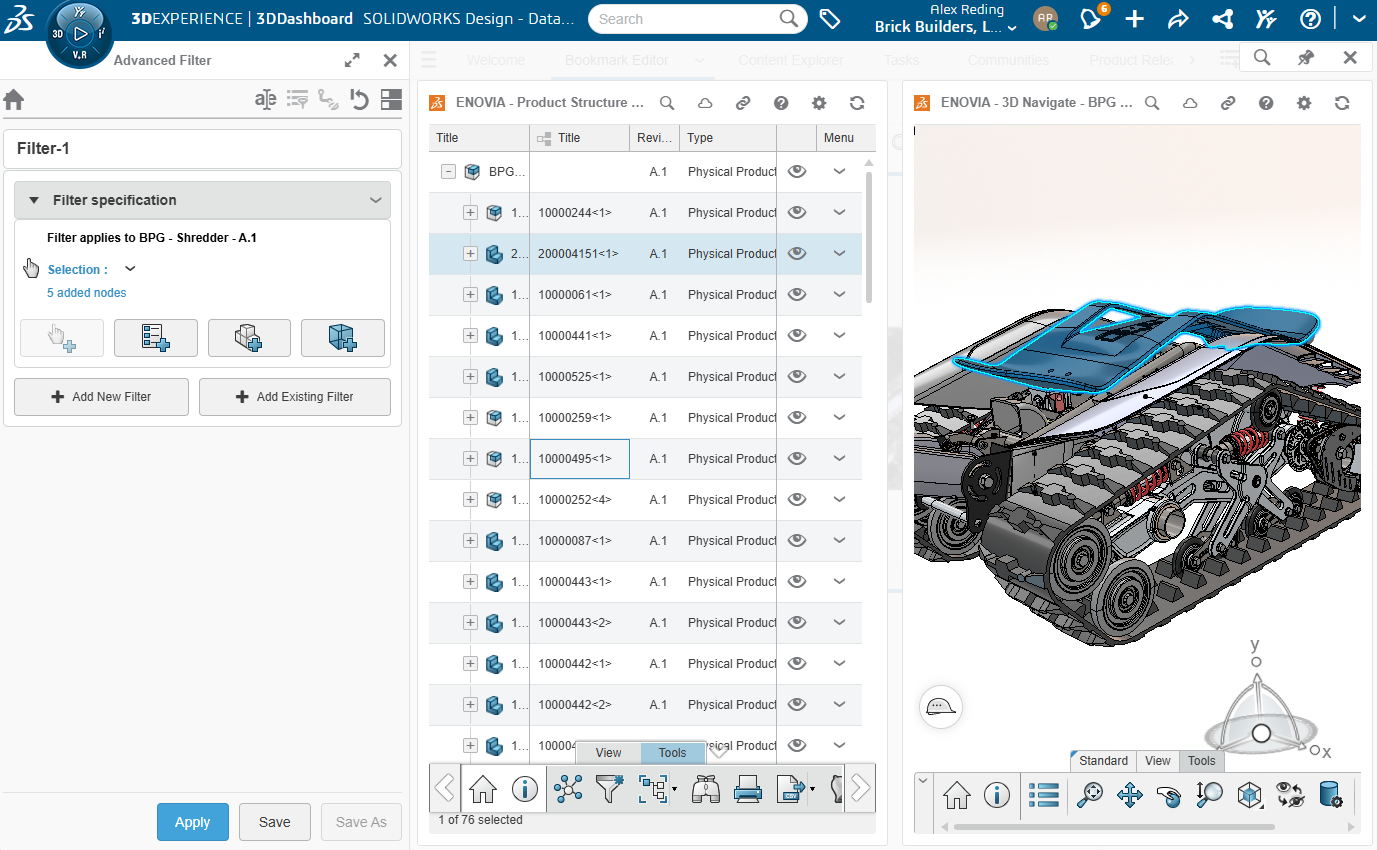
Once the large assembly is saved to the cloud, you can use an app called Product Explorer to visualize a list of all parts and assemblies in the file. You can also preview the file in 3D with the 3DNavigate App. From here, you can create and save a filtered view of the file and select only the parts and subassemblies you need to work on inside of SOLIDWORKS Design.
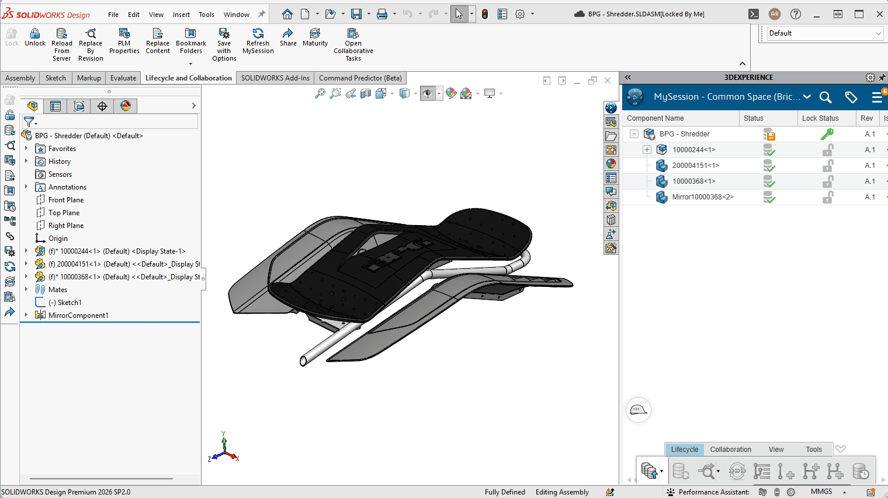
Once saved, you can open this filter directly in SOLIDWORKS Design. This will give you the opportunity to work on the specified files inside of a larger assembly and without the need to have the entire file loaded in SOLIDWORKS. This will save time and processing power on your PC. You can now work quicker and more efficiently on data that would normally appear sluggish, without the need to separate the files fully.
Once you save the changes to your filtered view, those changes will be visible in the main assembly it’s referenced from, as if it was done from the top level. You can even add these filters to a Bookmark Folder to easily go back to them when needed! Want to see an overview of this process in action? Check out this helpful video!
2: BREP to Parametric CAD (beta)
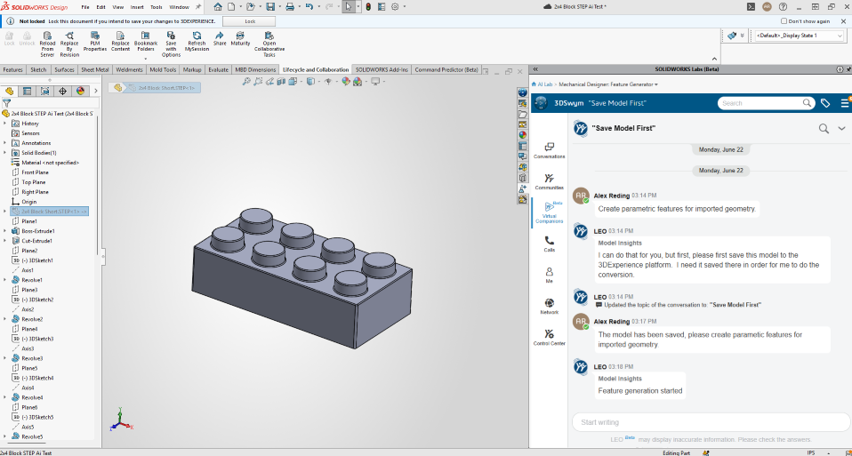
Along with some major enhancements this year, we have also seen the boom of AI building into SOLIDWORKS Design, powered by the 3DEXPERIENCE Platform. Now available in the latest release of SOLIDWORKS 2026 FD02, we have a new AI Labs app, on the Task Panel of SOLIDWORKS Design, that works with the integration of the 3DEXPERIENCE Platform.
The AI Labs (beta) is where we can test and use some of the new AI powered functions directly inside of SOLIDWORKS Design. One of which is the Feature Generator, which converts BREP data, like STEP files, into Parametric CAD with editable features.
Yes, you read that right, this AI tool is learning to assess models and generate SOLIDWORKS Features based on geometry, turning them into fully editable parametric models!
The steps to use the Feature Generator are straightforward:
-
Start by opening the BREP file in SOLIDWORKS and saving it on the 3DEXPERIENCE Platform. This is needed to use the processing power of the cloud to work with the AI and generate the features.
-
Once it’s saved to the cloud, go to the AI Labs tab in your Task pane and select Feature Generator from the list. This creates a new chat with LEO, the Mechanical Designer virtual companion, with a prewritten prompt to create parametric features for imported geometry.
-
Then, after a few moments of computing, SOLIDWORKS Design will refresh your view. This shows all the newly created features used to build your STEP or IGES file parametrically. From there, you can start modifying and designing with an editable file.
1: Auto-Generate Drawings (Beta)
Our number one enhancement so far in 2026 has got to be one of the other AI Lab (beta) tools; Drawing Creation (aka. Auto-Generate Drawings). This feature has been the center of many conversations with SOLIDWORKS Design users, as it helps by removing the tedious tasks of setting up 2D Drawings of CAD Models, and allows engineers and designers to focus more of their time and attention on developing and problem solving.
Now this AI powered drawing creation tool, like many of the other AI Lab tools, utilizes the virtual companions to walk through the process of creating the drawing through text prompts. It’s a fairly simple process for a basic drawing, and you can get as custom with it as you’d like. Everything from basic top, front, and side views to full customizations with tables, standard views, and more.
To get started with AI generated drawings, you’ll need to start inside of SOLIDWORKS Design, integrated with the 3DEXPERIENCE Platform, just like we did for the BREP to parametric CAD. In the AI Labs tab of the Task Pane, we can choose “Drawing Creation” to start a new conversation with LEO. In the chat, you can start with a basic prompt like “Please generate a drawing for this part.”
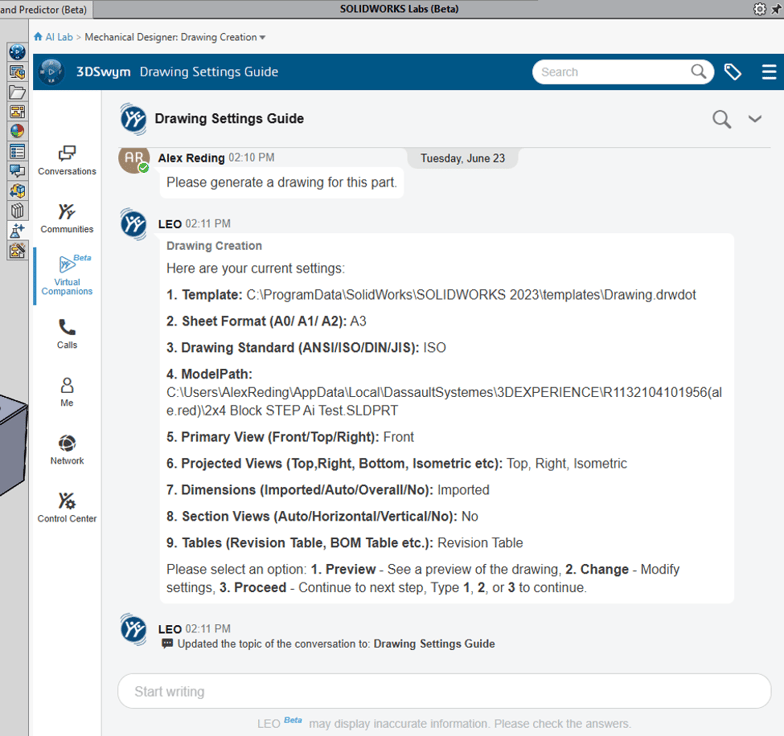
From here, Leo will offer you a list of your current default settings for generating these drawings, with the options to preview the file, change the default settings to a more customized approach, or proceed with the drawing generation with the current settings.
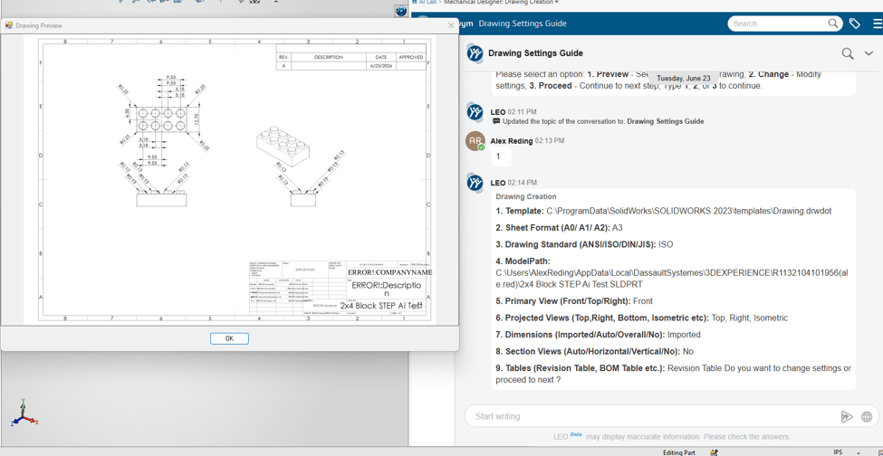
In this case, I asked LEO to provide a preview before I have the file fully generated. I can go back and request modifications, or I can tell LEO to go ahead and proceed with creating the file. Lastly, LEO will ask where you want the file to be saved initially. Provided the file location exists and is properly accessible, the drawing should be created and saved there for you to open, modify and save.
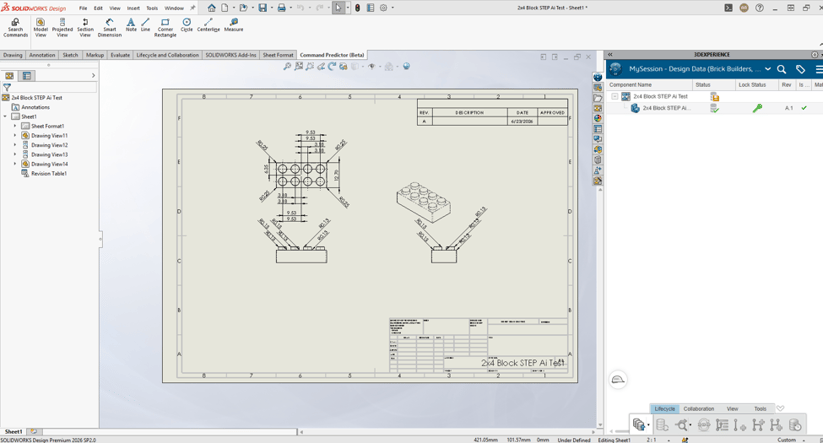
It’s safe to say, generating drawings just got a lot easier! There is another function inside of SOLIDWORKS that can Auto-Generate Drawings. If you’d like to learn more about that, check out this quick video walkthrough!
The Future with SOLIDWORKS Design, AI, and More!
The AI features within SOLIDWORKS Design with the 3DEXPERIENCE Platform are only just beginning. Right now, we have 11 different functions in the AI Labs task pane tab. With each update and release of SOLIDWORKS Design, we receive additional tools and enhancements.
Here is what you need to make sure you can take full advantage of the latest and greatest in SOLIDWORKS Design with AI:
-
Make sure you have the Designer for SOLIDWORKS Add-in installed from the 3DEXPERIENCE Platform if you have a traditional, machine-based license of SOLIDWORKS Design. This is what will get you the AI Labs tab inside SOLIDWORKS.
-
If you have a user-assigned license of SOLIDWORKS Design through the 3DEXPERIENCE Platform, then you just want to make sure you always have the latest updates installed to take advantage of these amazing features as they are being developed.
When in doubt, ask! The CADimensions team is ready to answer questions, troubleshoot issues, and share feedback with Dassault Systèmes to help guide future updates. Stay tuned for more updates to come, with the release of 2026 FD03 on July 10th!
Are you new to SOLIDWORKS Design and want to learn more? Check out the SOLIDWORKS Design product page to see what industry standard, parametric CAD is all about!